Why a schedule appears to run twice
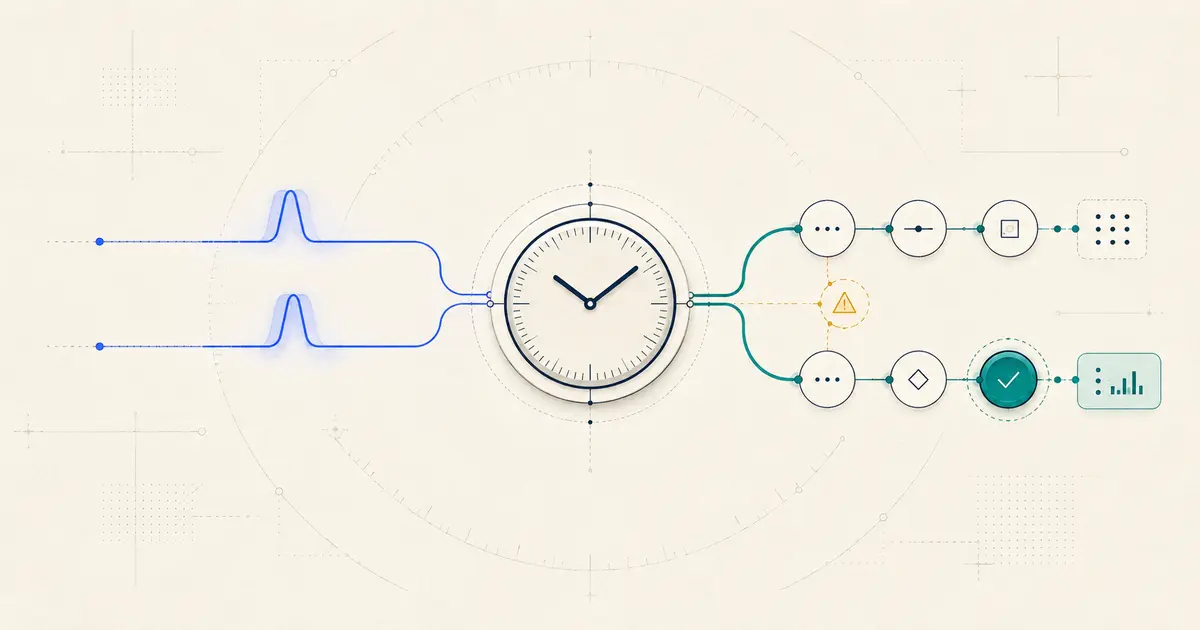
A Schedule Trigger that appears to run twice can reflect three distinct patterns, and each has a different fix. First, check the Executions list for the workflow: two separate execution records with two different start times point to a genuine double-trigger, most often from an active copy of the workflow or two Trigger Rules resolving to the same moment. One execution whose downstream data contains duplicate items is not a trigger problem at all. One execution still Running or Waiting when the next scheduled window opens is overlap, not duplication. Confirm which of the three you have before changing anything.
Start with execution evidence
First proof: two executions, two items, or one long overlap?
Open the Executions list for the workflow before touching any node. n8n’s execution list lets you filter by status — Failed, Running, Success, or Waiting — and by start time, and each row is a distinct execution record with its own start time. The question to answer first is simple: are you looking at two rows, or one?
Two execution records
If the list shows two separate rows for the window in question, each with its own start time close together, that is a genuine double-trigger candidate. Move to the diagnostic checklist below to find out why.
One execution, duplicated items downstream
If there is only one execution record but a node partway through the workflow shows two (or more) items where you expected one, the Schedule Trigger itself did not double-fire. The duplication is happening inside the workflow — commonly in a node that fans data out, such as a Split Out, Merge, or an API call that paginates unexpectedly. This is a data-shape issue, not a scheduling issue, and the fix belongs in that node, not in the trigger. If the duplicated items are arriving from an inbound webhook rather than a schedule, that is a related but separate problem covered in the duplicate-webhook guide.
One long execution, no second start
If there is only one execution record and it is still marked Running or Waiting when the next scheduled window arrives, you do not have a duplicate trigger. You have overlap: the previous run has not finished before the next one is due. Overlap and duplication look similar from the outside — two things happening around the same time — but they have different causes and different fixes. Overlap is the subject of a dedicated companion guide on stopping overlapping n8n workflow executions; this article focuses on the case where the trigger itself is the suspect.
Eight checks in order
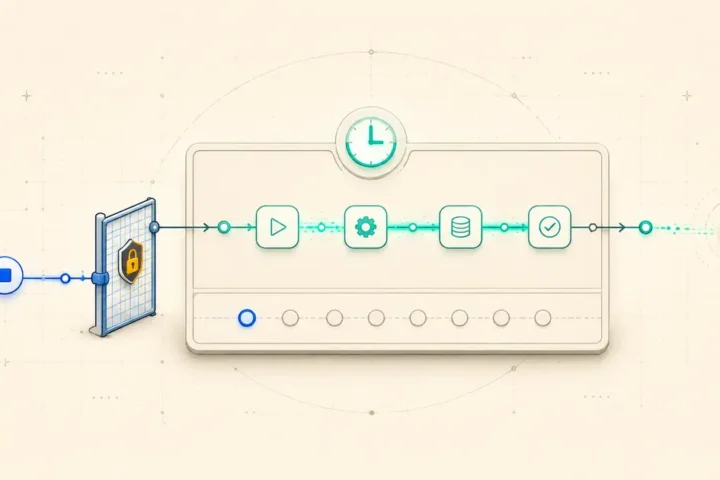
Eight-check diagnostic sequence
Work through these checks in order. Each one either clears a possible cause or points you to the root-cause matrix below.
- Execution history first. Filter the Executions list to the affected time window and count the distinct execution IDs. This is the check that everything else depends on: if there is only one execution, several of the remaining checks don’t apply.
- Trigger Rules on the node. Open the Schedule Trigger node and count the Trigger Rules configured on it. The node supports multiple Trigger Rules in a single node, and two rules that resolve to the same moment is a supported configuration, not automatically a bug. If you have two rules and they overlap, that alone explains two executions.
- Active copies of the workflow. Search your workspace for another workflow — a duplicate, an old draft, or a version pushed via source control — that is also published and produces the same downstream effect. This is an operator diagnostic, not a documented claim that n8n clones schedules on its own; you are checking for a human-created duplicate, not a platform bug.
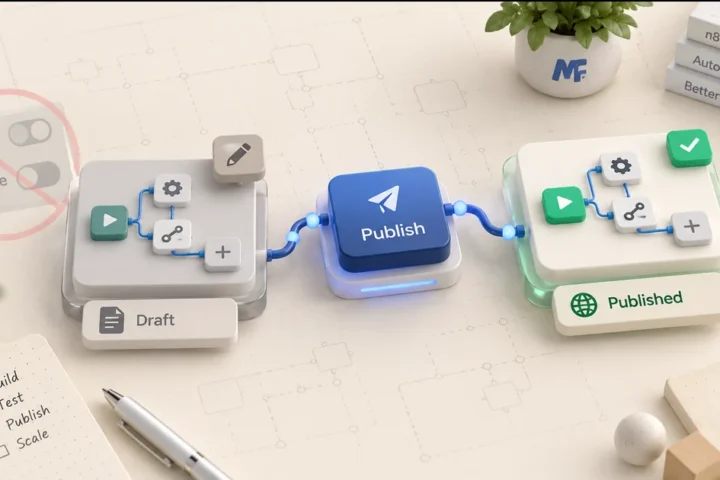
- Publish state. Confirm the workflow is actually published, and that you are looking at the published version’s schedule rather than an unsaved draft. n8n requires Schedule Trigger workflows to be published for the schedule to run at all, and an unpublished edit sitting on top of a published, still-active schedule is a common source of confusion about “which schedule is actually running.”
- Schedule variables. If the Trigger Interval or Cron Expression references a variable, remember that variables in a scheduled trigger are evaluated when the workflow is published. Changing a variable’s value after publishing does not change the live schedule until you republish, so a variable that looks wrong in the editor may not be what is actually driving the current schedule.
- Interval anchor after republish. For interval-based schedules (every N minutes/hours), the anchor point for “every N units” is set by when the workflow was published, not by a fixed clock reference. Republishing can reset that anchor, which can make an interval schedule appear to shift or double up around the republish moment.
- Timezone. The Schedule Trigger uses the workflow’s timezone if one is set, otherwise the instance timezone. Self-hosted instances default to America/New York; n8n Cloud tries to detect the owner’s timezone at signup and falls back to GMT. A workflow firing at an unexpected wall-clock time is a timezone problem, not evidence of a duplicate — do not call a wrong-time execution a duplicate unless the execution history actually shows two starts.
- Overlap as the alternative explanation. If steps 1 through 7 come back clean — one execution record, one Trigger Rule, no duplicate workflow, correctly published, no stale variable, a stable anchor, and correct timezone — the remaining explanation is overlap: a previous run still active when the next window opens. Confirm using the execution’s status and duration, then move to the overlap guide linked above.
Evidence to correction
Root-cause matrix
Change one variable at a time
Safe republish procedure and rollback note
Once you’ve identified which row of the matrix applies, use this sequence to correct it without introducing a second scheduling gap or a second overlap.
- 01
Record the current schedule
Note the current published schedule’s next two expected fire times before changing anything, using the Trigger Interval or Cron summary shown in the node.
- 02
Make one correction
Make the single change indicated by the root-cause matrix — remove a redundant Trigger Rule, deactivate a duplicate workflow, correct the workflow timezone, or update the variable feeding the schedule.
- 03
Save and publish
Save the workflow, then explicitly publish it. Remember that a saved-but-unpublished change has no effect on the live schedule.
- 04
Re-check the next run
Because republishing can reset the anchor point for interval-based schedules, immediately re-check the node’s displayed next-run time against what you expect, rather than assuming the old cadence carried over unchanged.
- 05
Observe the next window
Watch the Executions list through the next scheduled window to confirm exactly one execution record appears at the expected time.
Watch two schedule windows
Verification checklist for the next two expected schedule windows
- Exactly one execution record appears at each of the next two expected fire times, not zero and not two.
- Each execution’s start time matches the workflow’s configured timezone, not a shifted wall-clock time.
- The Schedule Trigger node’s displayed next-run preview matches what actually fired, confirming the anchor didn’t drift after republishing.
- No second published workflow produces the same downstream side effect during the same window.
- If a Trigger Rule was removed or changed, the remaining rule(s) still cover every window the workflow is meant to run.
Short answers
FAQs
Does n8n ever fire a Schedule Trigger twice on its own, without a configuration cause?
Execution history proves what ran, but it may not prove why. This guide does not rule out a software defect; it prioritizes documented configuration causes and observable overlap first. If two starts remain unexplained after the checklist, preserve the execution IDs, timestamps, workflow version, and timezone before escalating the case.
Can two Trigger Rules on the same node ever be correct?
Yes. Multiple Trigger Rules on a single Schedule Trigger node is a supported way to run a workflow on more than one cadence, for example a frequent daytime interval plus a separate nightly cron rule. Two rules resolving to the same moment occasionally is a configuration outcome, not evidence of a defect.
Why does my schedule look wrong immediately after I changed a variable?
Variables referenced in a scheduled trigger are evaluated at publish time. If you changed the variable’s value after the workflow was already published, the live schedule is still using the value from the last publish. Republish to make the new value take effect.
I republished and now the interval seems to have shifted. Is that expected?
It can be. For interval-based schedules, the anchor for “every N units” is tied to the publish moment, so republishing can reset where that interval counts from. Check the node’s next-run preview immediately after republishing rather than assuming the previous cadence continued unchanged.
How do I know if daylight saving time caused a duplicate?
Treat this as an open question rather than a confirmed cause. This guide does not claim to have reproduced daylight-saving behavior in the Schedule Trigger; if a suspicious execution coincides with a DST transition, verify against the workflow’s timezone setting and the execution history rather than assuming DST is the explanation.
Primary documentation
Sources and change log
initial publication, verified against n8n documentation on 5 August 2026. Environment reference: n8n Cloud 2.33.3 Stable, cited from a prior, separate webhook-deduplication test; this article’s checks were not run as a controlled lab.