Where the n8n Active toggle went
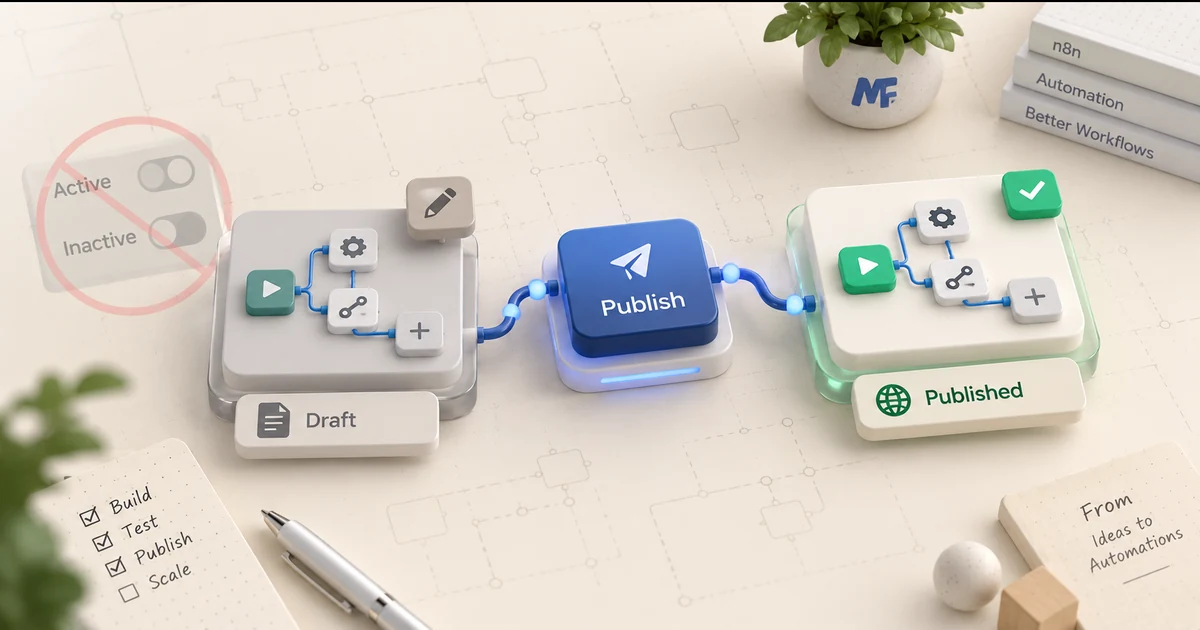
If the Active/Inactive toggle disappeared after moving to n8n 2.x, it was not hidden by your browser or removed from your account. n8n replaced the old activation toggle with a publishing model. A workflow can now be saved as a draft while an older published version continues running in production. To make a new workflow live, publish it. To stop automatic production runs, unpublish it. If a trigger still does not run after publishing, verify the published version, trigger type, production URL, credentials, and execution history before changing the workflow itself.
Documentation verified: 17 September 2026
Review basis: official documentation, no lab claim
What changed in n8n 2.x
n8n 2.0 changed the way workflow activation is presented. The old Active/Inactive toggle from 1.x was replaced by a publish/unpublish model. n8n’s own 2.0 guidance describes this as a safer separation between editing a workflow and changing the version that production actually runs.
The practical difference is important. In the older model, editing and saving an active workflow could immediately change the live workflow. In the current model, edits are saved as a draft version first. Production continues using the currently published version until you explicitly publish the new one.
That means three statements can all be true at the same time:
- Your latest edits are saved.
- Your workflow is already published and still running an older version.
- Your newest changes are not live yet.
This is why searching for a missing “Active” toggle can send you in the wrong direction. The control did not simply move to another corner of the editor. The workflow lifecycle changed.
| What you want | Older wording | n8n 2.x action |
|---|---|---|
| Make automatic triggers live | Activate | Publish |
| Stop automatic production runs | Deactivate | Unpublish |
| Keep editing without changing production | Often awkward on an active workflow | Edit the saved draft without publishing it |
| Push new edits to production | Save active workflow | Publish the new version |
How to activate an n8n workflow now
For n8n 2.x, think “publish” whenever an older tutorial says “activate.” The current n8n documentation says publishing makes the workflow live and locks production to a specific version.
-
Finish the workflow and check the trigger
Make sure the workflow has a trigger that is meant to run automatically, such as a Webhook, Schedule Trigger, or supported app event. A manual-only workflow does not become a scheduled or event-driven automation merely because it is published.
-
Confirm your edits have been saved
n8n auto-saves workflow edits, typically within one to five seconds according to the current documentation. Those edits remain draft changes until you publish them.
-
Select Publish in the workflow header
Use the Publish control to open the publishing flow. If your interface offers version details, review the changes before confirming. Publishing is the step that makes the selected workflow version the production version.
-
Confirm the workflow shows as published
n8n displays a published indicator for workflows that are live. If you publish and then immediately continue editing, remember that those later edits are new draft changes. The last published version remains the one production uses until you publish again.
-
Trigger it through the production path
For webhooks, call the Production URL rather than the Test URL. For schedules and connected-app events, create the real trigger condition and then check the execution history for a production execution.
If your real question is whether another copy of the same workflow is already running, that is a different problem. Use the MetaFlowKit guide on checking whether an n8n workflow is already running rather than treating Publish as a concurrency lock.
Save and Publish are not the same thing
This distinction explains most confusion after an n8n 2.x upgrade. Saving preserves your latest edits. Publishing changes the production version.
Suppose version A is published and running every hour. You edit three nodes, creating version B. Those changes can be saved while version A continues running automatically. Version B becomes the production version only when you publish it.
That separation is useful when a live workflow is business-critical. You can inspect and edit a draft without silently changing the automation that is already serving production traffic.
A simple version example
09:00  Version A is published
09:10  You edit two nodes
09:11  Draft changes are saved
09:30  A scheduled production run uses Version A
09:40  You publish the new version
10:30  The next production run uses the newly published version
The exact timestamps above are only a synthetic example. The important rule is documented by n8n: production executions point to the published version, not every saved draft edit.
Published, but still not running? Check these causes in order
Publishing is necessary for automatic production triggers, but it does not guarantee that every external condition is correct. If the workflow is published and nothing happens, classify the failure before rebuilding nodes.
| Symptom | Likely check | Evidence to look for |
|---|---|---|
| Webhook works in test but not live | Production URL | Sender is calling the Production URL from the published workflow |
| Schedule never fires | Published version and schedule settings | Workflow shows published and the intended schedule is in that published version |
| App trigger receives nothing | Credential and trigger registration | Credential is valid and the external app is producing the expected event |
| Old behavior continues | Unpublished draft changes | Current production version differs from the saved draft |
| Two runs appear | Duplicate delivery or trigger path | Compare execution IDs, timestamps, event IDs, and endpoint registrations |
1. Webhook: check Test URL versus Production URL
n8n gives Webhook nodes separate Test and Production URLs. The Test URL is for development while n8n is listening for a test event. The Production URL is registered for the published workflow and is the URL an external service should call for normal live operation.
If a webhook worked five minutes ago during testing but stops after you close the editor, the first check is the sender’s destination URL. Do not assume publishing failed until you confirm the sender is using the Production URL.
2. Schedule: verify the schedule exists in the published version
If you edit a schedule and see the change on the canvas, that only proves the draft contains it. Confirm the workflow has been published after the schedule change. If an older version is still published, production can continue using the older configuration.
3. Connected app: separate publishing from credential or event problems
A published workflow can still receive no events if a credential is expired, permissions changed, the app-side subscription is missing, or the source event never occurred. Publishing determines which n8n version is live; it does not repair an external service connection automatically.
4. Executions: use history to prove whether the trigger fired
Open the workflow or project Executions view and filter by the workflow and status. n8n documents execution statuses including running, waiting, success, and error. If there is no production execution at the time you expected one, investigate the trigger path first. If an execution exists, open that execution and diagnose where it stopped.
For broader n8n diagnostics and related guides, use the MetaFlowKit n8n platform hub.
How to make an n8n workflow inactive in 2.x
The reverse of Publish is Unpublish. Current n8n documentation says you can unpublish from the Publish control’s dropdown, the workflow list, or version history.
Unpublishing removes that workflow from production so its automatic production triggers stop running. It does not erase the workflow or automatically undo actions that already happened in completed or running executions.
If you are unpublishing because a webhook appears to fire twice, first preserve both executions and compare their event identifiers. The MetaFlowKit guide on why an n8n webhook fires twice separates duplicate delivery from duplication inside one workflow.
Verification checklist after publishing
Use a small, evidence-first check rather than clicking Publish repeatedly.
- Workflow status shows the intended version as published.
- The trigger that should run automatically is present in the published version.
- For Webhook nodes, the external sender uses the Production URL.
- For schedules, the intended timing is present in the published version.
- Credentials used by the trigger and first downstream action are valid.
- A safe synthetic event creates one production execution when one event is sent.
- The execution history shows the expected mode, status, and timestamps.
- Any edits made after publishing are recognized as draft changes until published again.
If those checks pass, the old “Active toggle missing” problem is solved. Any remaining failure belongs to the trigger, workflow logic, credentials, external service, or execution path rather than the missing toggle itself.
FAQs
Where is the Active toggle in n8n 2.x?
n8n replaced the old Active/Inactive toggle with Publish and Unpublish. Publish makes a workflow version live for production triggers; Unpublish removes it from production.
Does saving an n8n workflow activate it?
No. Current n8n versions save draft edits automatically, but production continues using the published version until you publish the new version.
Why is my published webhook not working?
First confirm the sender is using the Webhook node’s Production URL, not the Test URL. Then check credentials, trigger registration, and the workflow’s production execution history.
Can I edit a workflow while the published version keeps running?
Yes. That separation is a core reason for the publishing model: draft edits can be saved while production continues using the currently published version until you publish again.
Does Unpublish undo executions that already ran?
No. Unpublishing stops the workflow from remaining live for future automatic production triggers. It does not reverse external side effects that already occurred.
Sources and change log
- n8n Docs — Save and publish workflows
- n8n Help Center — Understanding Workflow Publishing in n8n 2.0
- n8n Blog — Introducing n8n 2.0
- n8n Docs — Create and run workflows
- n8n Docs — Webhook workflow development
- n8n Docs — Executions
Change log: Initial publication. Documentation and official n8n guidance verified on 17 September 2026. No controlled account or production-lab test is claimed.